Free AI Background Remover
Remove the background from a product, portrait or pet photo and download a transparent PNG.
2 free images daily
Verified account required · then 2 credits per image

Change the setting.
2 free images daily with a verified account · Then 2 credits per image.
Remove portrait backgrounds around fine curls
Hair and shoulders create a different kind of edge from a solid product. A reusable portrait cutout lets you build profile graphics, team pages and personal designs on the backdrop you choose.

Try the portrait on four backgrounds. Inspect the fine curls and shoulder edges as the setting changes around the person.
Products without distractions
Separate the item from your desk or room, ready to use in a listing layout.
Portraits for your designs
Create a cutout for a speaker card, presentation or profile composition.
A PNG you can reuse
The checkerboard is a preview of transparency. It is not printed into the downloaded image.
Put a transparent photo cutout to work
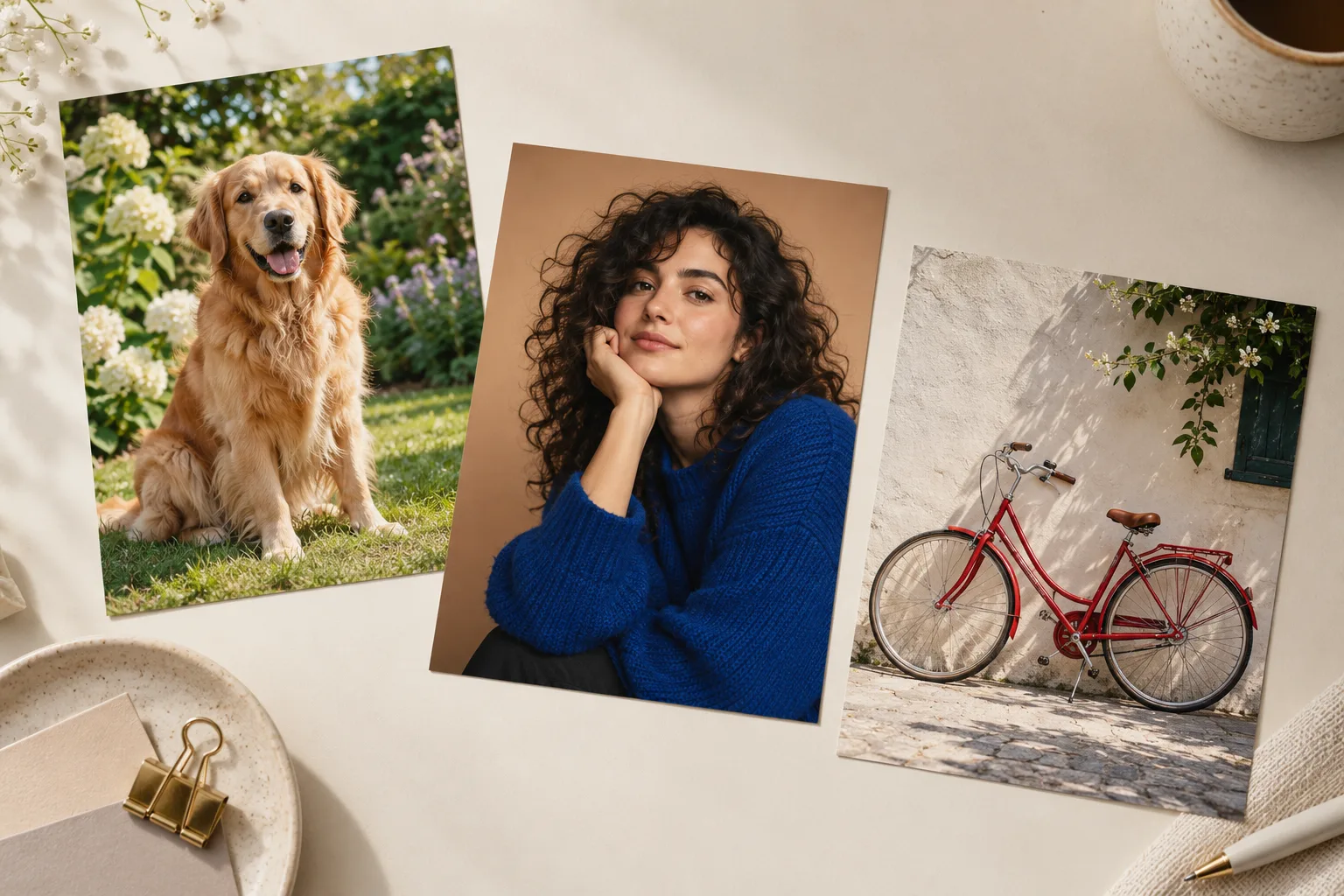
An AI background remover separates the subject from its surroundings. The transparent space in the PNG lets a new color, photograph or layout show through, so the same cutout can become part of several designs.
Build a product offer graphic
Place a product cutout to one side of a colored canvas in your design app. Use the space beside it for a name or offer, then adjust the item’s size without cropping a new rectangle each time.
Make a speaker or team introduction
Set a portrait beside a speaker name, role or short biography. Align the shoulders and leave room above the hair when arranging the cutout, so the person sits comfortably in the slide or graphic.
Create a personal invitation or collage
Layer a pet portrait over a patterned invitation or combine several cutouts in a scrapbook. Keep the PNG as your reusable source so the same subject can work against another design later.
Check the edges that make a cutout feel natural
A clean outline matters most where the subject meets its new background. Inspect those transitions at a useful viewing size before adding your cutout to a finished layout.
Hair and fine strands
Look around the crown, loose hair and shoulders. A source portrait with clear light and visible separation from the background makes these small details easier to distinguish.
Fur and textured outlines
Check the fringe around ears, paws and fluffy coats. Try the PNG on a light and a dark backdrop to spot any remaining background color at the edge.
Handles, straps and open spaces
Look inside the subject as well as around it. The gap in a handle, between headphone bands or beside an arm should let the new background show through.
Transparent, white or a new photo background?
These outputs serve different jobs. Start with the version you need for your final layout, rather than removing a background twice.
Keep the PNG when you need transparency. Exporting the cutout as a JPEG in another app fills the transparent area with a solid color.
Keep a transparent PNG
Choose Background Remover when you want to layer the subject into your own design or use it on several different backgrounds.
Make a white-background product photo
For a ready-to-use solid backdrop, use White Background and choose the finish that suits your shop.
Create a scene around a product
Use AI Product Photo when you want a tabletop, studio or lifestyle setting instead of empty space.
How to use Background Remover
Upload a clear subject
Choose a JPG, PNG or WebP with the entire subject visible.
Remove the background
Check your remaining free use or the displayed credit price, then start.
Save a transparent PNG
Inspect the outline and download your cutout for your preferred design app.
Background Remover FAQ
Plans & credits →What is included for free?+
After email verification, you get 2 free images a day. The same daily allowance applies to subscribers. Extra images cost 2 credits each.
Will my download include the checkerboard?+
No. The checkerboard only indicates transparency. Your PNG contains the subject and transparent space around it.
Can I get a white background instead?+
Yes. Use White Background for a finished image on a white canvas. Background Remover itself produces a transparent cutout.Open White Background
How do I get a good cutout?+
Use a clear original with space around the subject. Before downloading, inspect fine hair, soft edges and transparent materials against the preview.
When do my free uses reset?+
Each tool’s daily allowance resets at 00:00 UTC. Using another tool does not reduce this allowance. Unused daily uses do not carry over.
Will I lose credits if processing fails?+
No. If a task fails, its credits or free use are returned. A completed result still uses the displayed credits or free allowance, even if you decide to try a different edit.
How long are my images saved?+
Image results created with an active subscription or an unexpired credit-pack purchase stay saved until you delete them. Other image results are available for 3 days. Check the expiry shown with each result and download any images you want to keep.My creations
Continue with the right image tool
Let your subject stand on its own.
Remove your background