Free AI Image Describer
Get a detailed image description, a reusable prompt and concise alt text from one photo.
3 free images daily
Verified account required · subscribers have unlimited free use

A florist arranges orange dahlias and cream flowers at a wooden table. Window light falls across the bouquets, with shelves of plants behind her.
Get a description, image prompt and alt text in one go.
3 free images a day. Subscribers have unlimited free use.
Describe interiors for listings and image alt text
Different writing needs different detail. A room description can explain furniture and light, while concise alt text identifies the scene without repeating every decorative element.
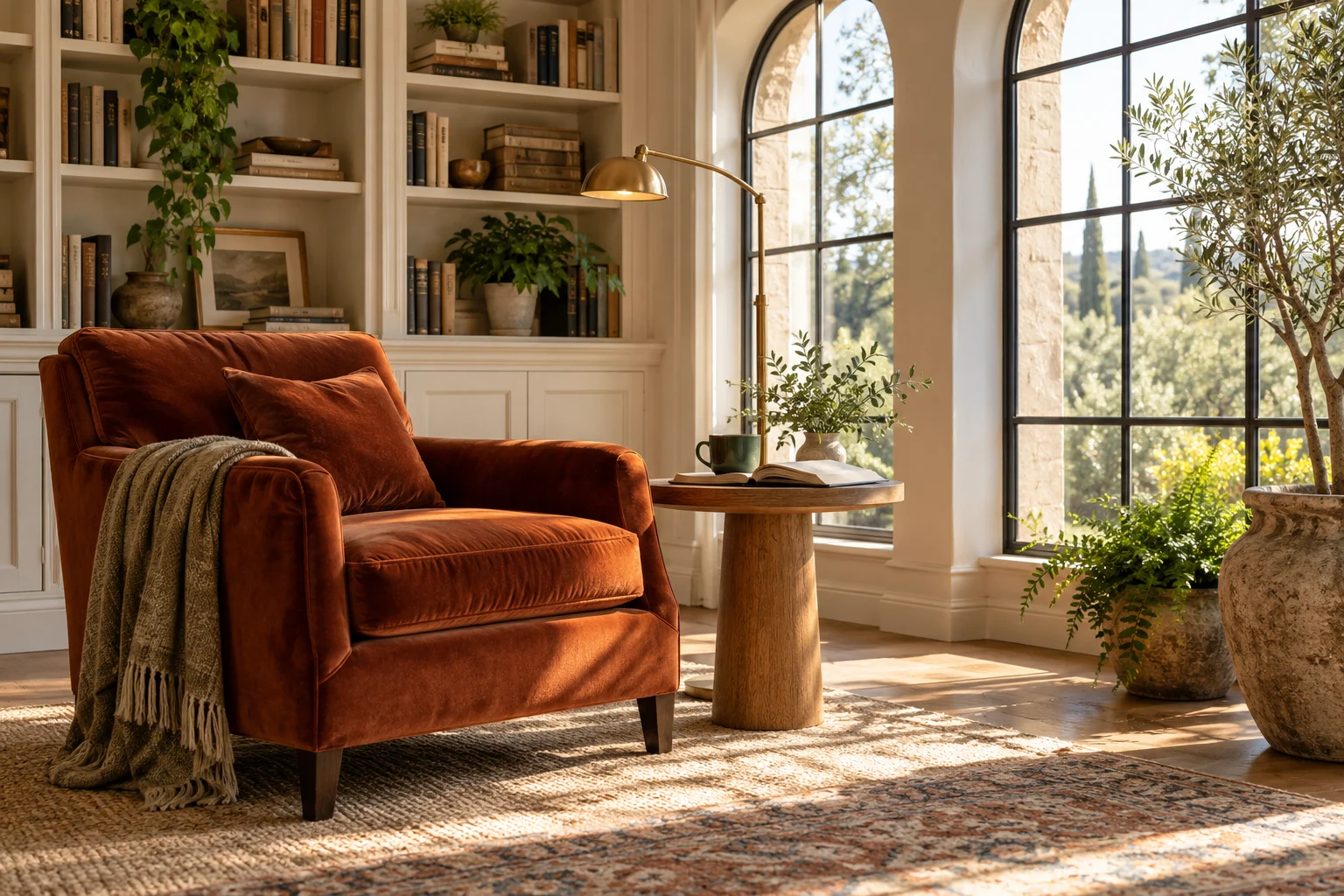
A rust-colored armchair sits beside a small oak table holding an open book and a green mug. Arched windows bring daylight into the room, with a brass floor lamp, leafy plants and cream bookshelves completing the reading corner.
Describe what is visible
Use the subject, setting and action as a starting point for a caption or image library.
Write alt text with context
Start with the visual facts, then adapt the description to the purpose of the image on your page.
Build a creative reference
Use the included image prompt to express composition, lighting and atmosphere.
What does an AI image describer do?
An AI image describer turns the visible content of a picture into words. It brings together the subject, setting, actions and visual details, so you have a starting point for a caption, an image library or a web page.
Describe the scene
A useful image description explains how the parts of a picture relate: who or what is in focus, what is happening and where the scene is set. Use the longer description when those details matter.
Choose the right amount of detail
A short alt text serves a different purpose from a descriptive paragraph. Imagable gives you both, so you can choose the format that fits the place where your image will appear.
Image descriptions for products, places and visual ideas
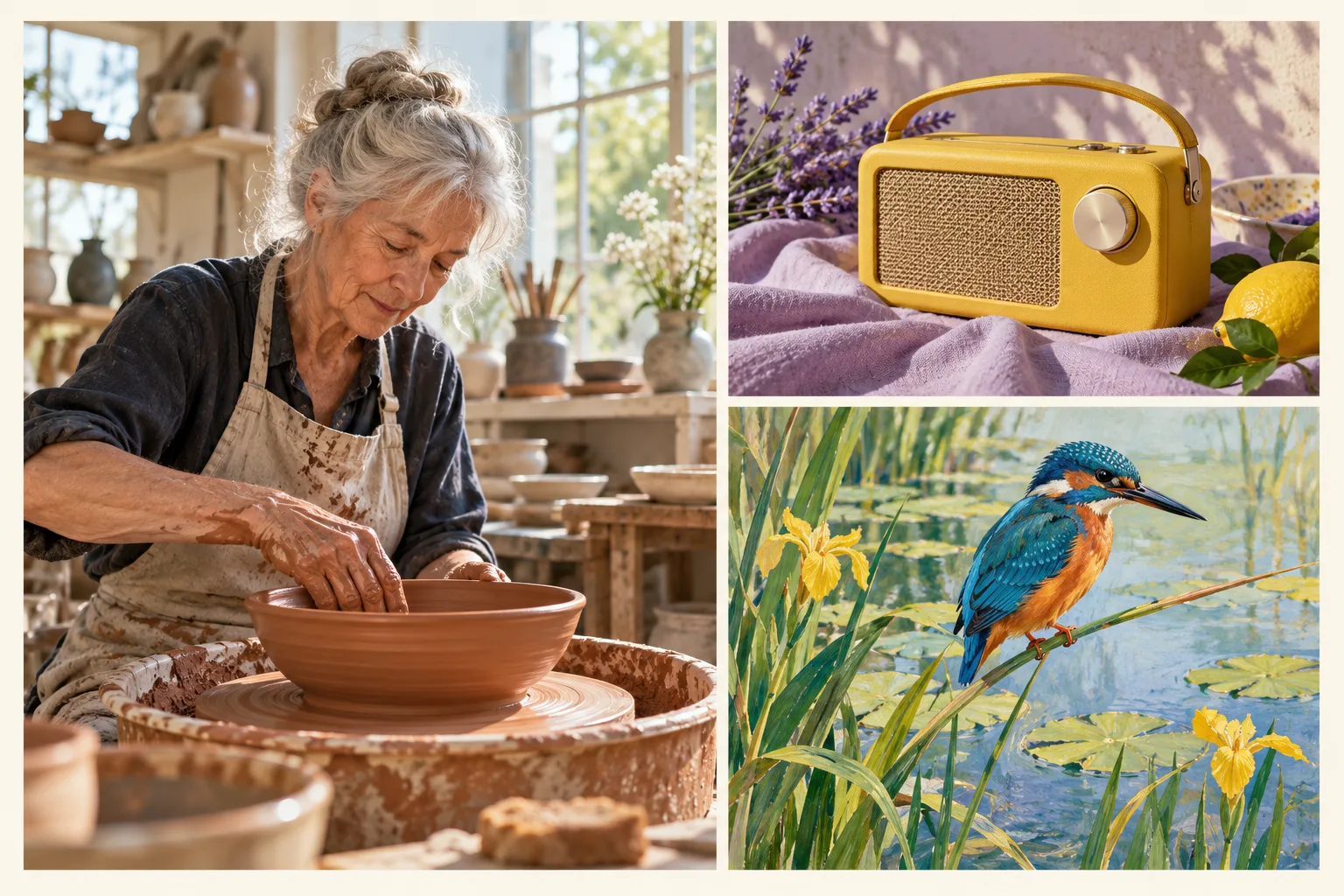
Product image descriptions
Start with the visible shape, color, material and arrangement. Add verified product specifications yourself when the photograph cannot show them, such as dimensions or what is included in the box.
People, places and everyday photos
Put a place or moment into words for a photo collection or a draft caption. The description can help you recall the scene without inventing the location, names or story behind it.
Illustrations and design references
Describe the subject, arrangement, colors and style of artwork. Use those observations when discussing a visual direction with a collaborator or organizing a reference collection.
Write image alt text with the page in mind
Alt text gives a concise alternative to an image. The most useful version reflects why the image is on your page: a product image needs identifying visual details, while a tutorial image may need to explain the action being shown.
Keep the useful visual information
Review the generated text in context. Keep important details, remove repetition and avoid inserting unrelated search keywords. A specific, readable sentence is more useful than a long list of objects.
Describe your imageAn alt-text writing example
“A yellow raincoat hanging beside a pair of muddy walking boots.”
A clear subject and a useful relationship
The color identifies the coat; its position beside the boots explains the arrangement. Add more only when the surrounding page needs it.
Use your image description in the right format
Write for your readers
Choose English, Chinese, Japanese, Korean, Spanish, French, German or Portuguese before describing the image. Review the wording, then copy the section you need or download the text for your own workflow.
Turn a visual reference into a creative brief
If your next step is making a new image, use Image to Prompt to focus on composition, light and style. A descriptive caption tells a reader what is there; a creative prompt helps direct what you want to make.
How to use Image Describer
Upload an image
Choose a photograph, illustration or screenshot in JPG, PNG or WebP.
Choose a language
Select one of eight languages. A single analysis includes all three text formats.
Copy the words you need
Review the result, copy a section or download the text for later.
Image Describer FAQ
Plans & credits →What is included for free?+
After email verification, you get 3 free images a day. Subscribers have unlimited free use. After your free uses, subscribe or wait for the next daily reset; this tool does not charge credits.
Does switching between text formats cost another use?+
No. Description, image prompt and alt text are included in one analysis. Running a new analysis, including in another language, counts as another use.
Can I use the alt text on my website?+
Yes. Check the visible details and adjust the wording to the surrounding page before publishing.
Which languages are supported?+
English, Simplified Chinese, Japanese, Korean, Spanish, French, German and Portuguese.
When do my free uses reset?+
Each tool’s daily allowance resets at 00:00 UTC. Using another tool does not reduce this allowance. Unused daily uses do not carry over.
Does a failed analysis use my daily allowance?+
No. If the analysis fails, its free use is returned so you can try again.
Can I find my text again later?+
Yes. Open Task history to copy or download your text again. Text results stay until you remove the record; the original upload expires after 24 hours.Task history
Continue with the right image tool
Turn your image into useful words.
Describe your image