Remove People from Photos
Remove unwanted people from your photo without cropping the scene.
8 credits per image
40 welcome credits after verified sign-up
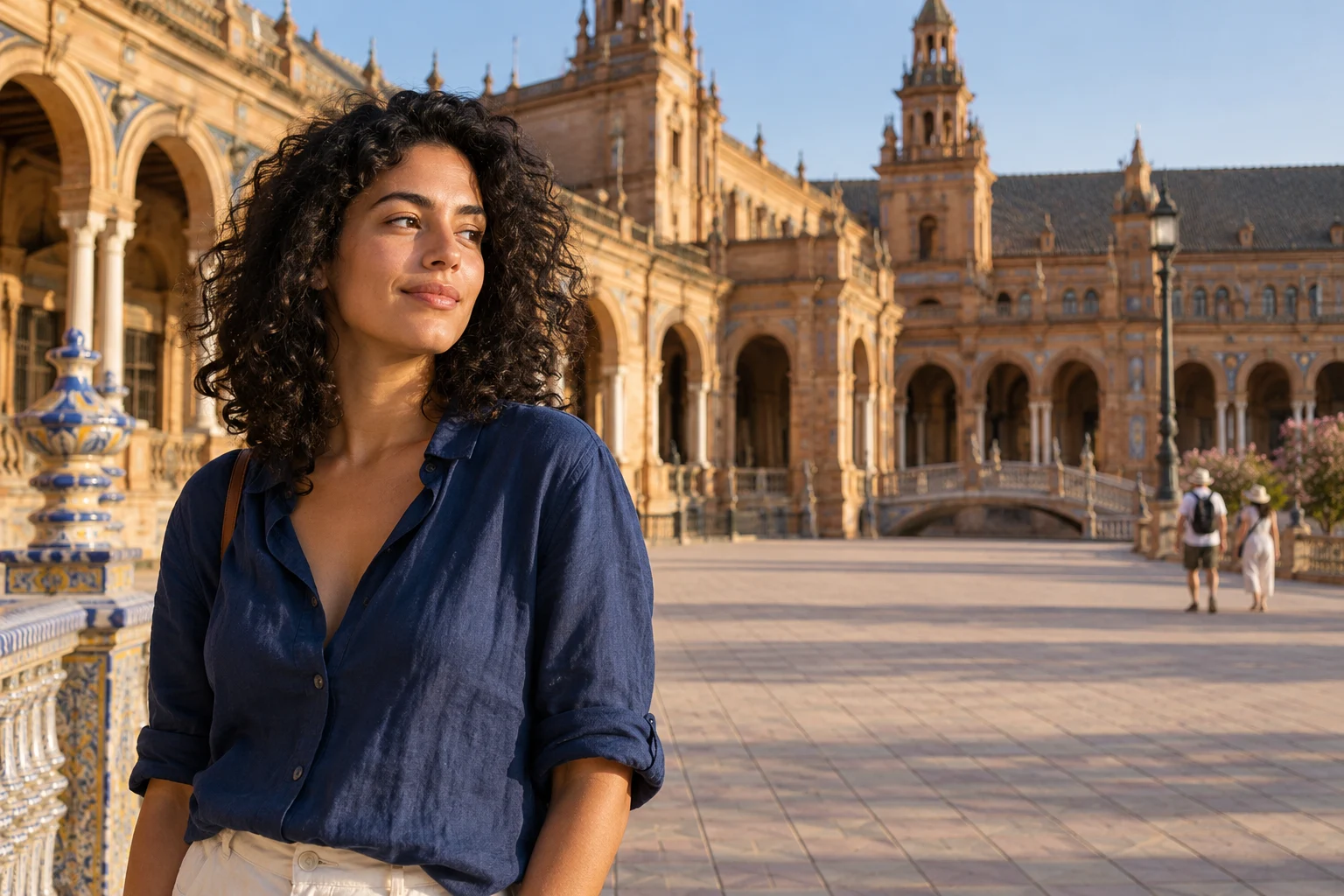
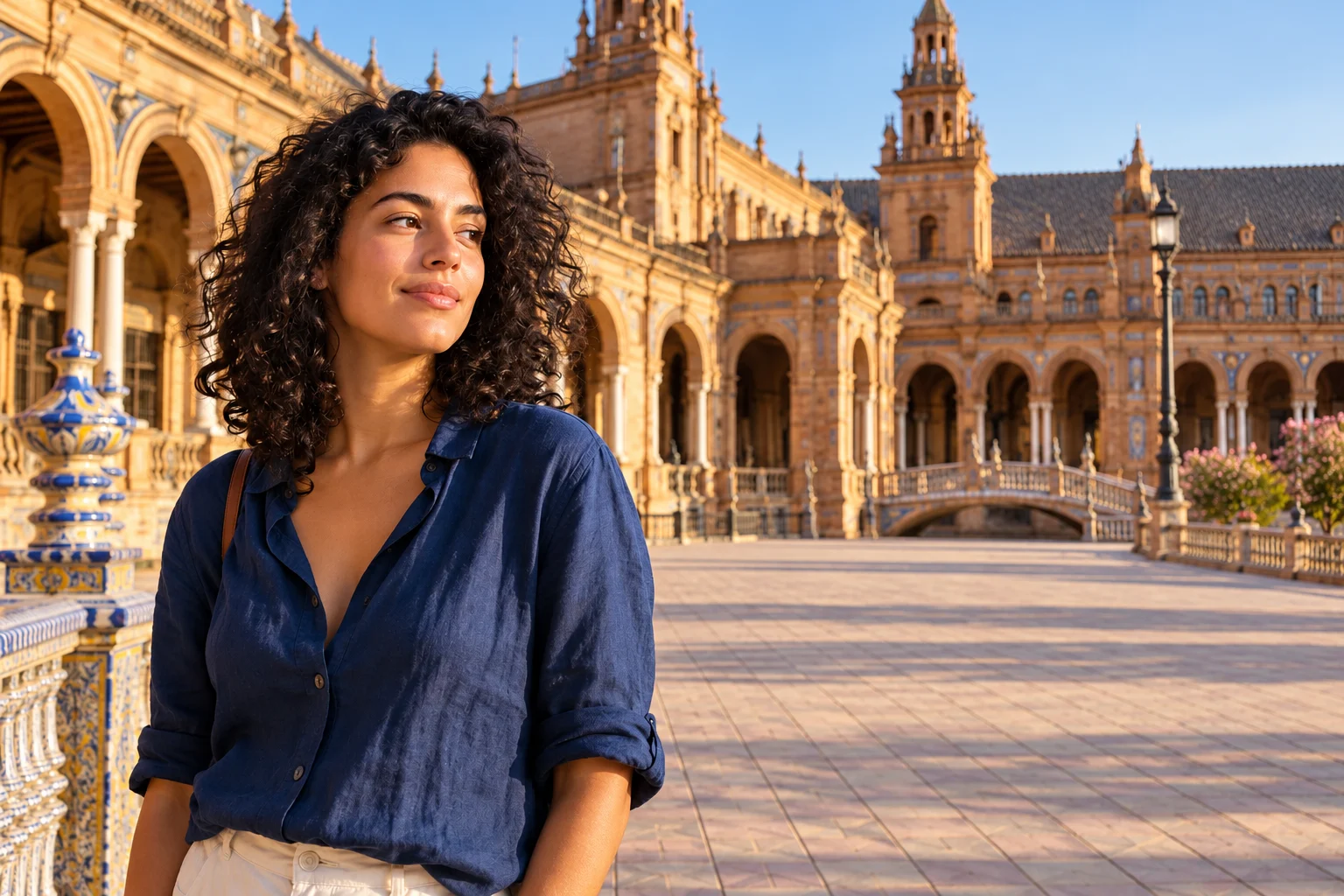
Files are stored temporarily. Download your results before they expire.
File privacy & retention
Anyone with a direct file link can open it. Keep those links private. Read our privacy policy.
40 welcome credits after verified sign-up.
Remove background people from outdoor portraits
Keep the person you photographed and give the landscape room to show. On a trail, beach or viewpoint, a targeted removal can clear background visitors without changing the main subject.
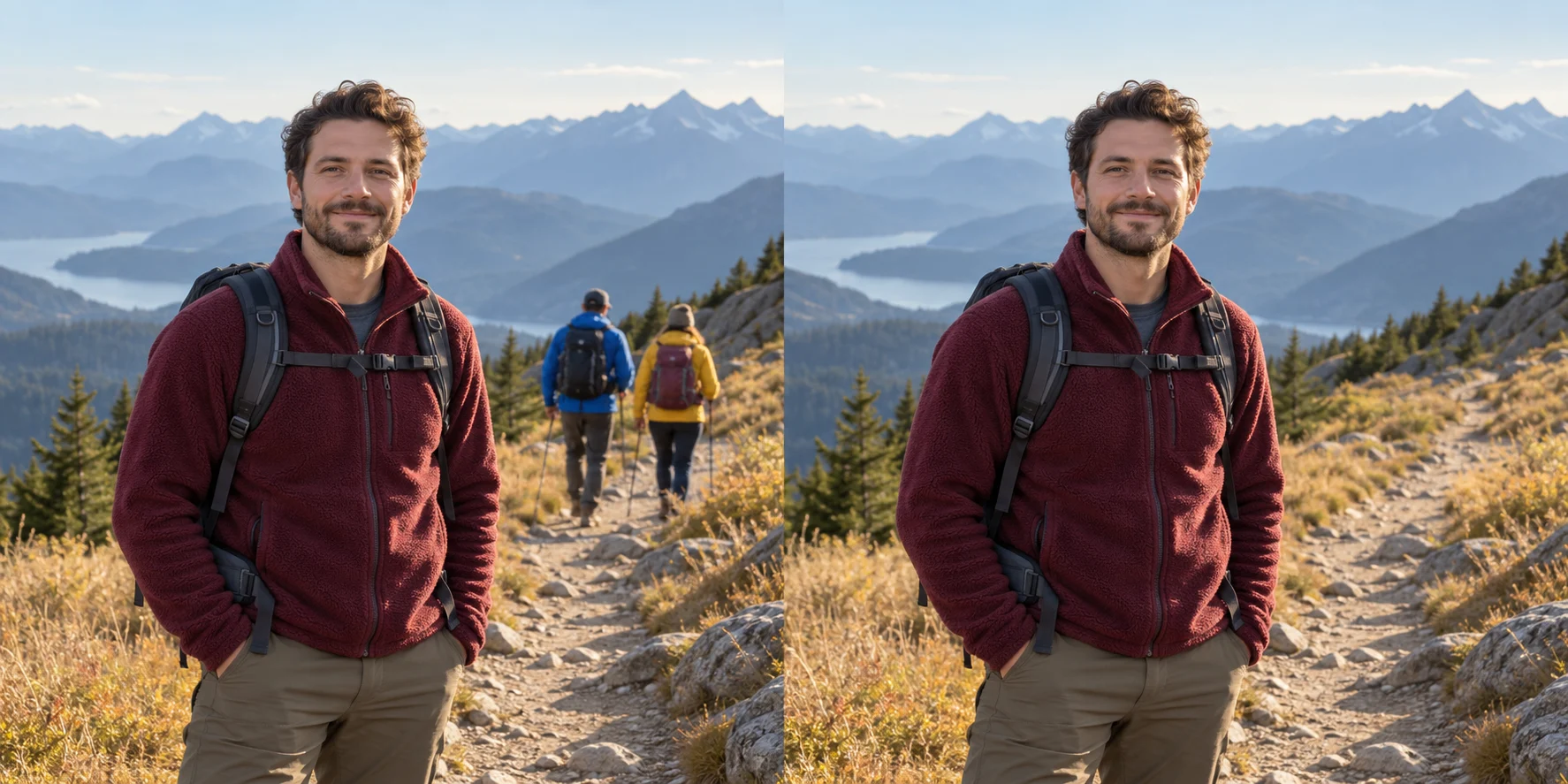
Busy trail
Just the portrait
Remove unwanted people from your favorite photo moments
Remove Person from Photo lets you choose the people you want to erase and fills their place using the surrounding scene. It is useful when the right expression, light and location are already in the frame, but an unwanted person draws attention away from them.
Travel photos with fewer distractions
Clear background visitors from a landmark, scenic overlook or city street. Keep enough of the original setting around the selected person for the scene to make visual sense.
A photobomber at the edge of the frame
Keep the crop you like instead of cutting off part of your subject. Include the unwanted figure from head to foot, along with a visible shadow when it should go too.
A more focused group photo
Select the person who should leave the composition while keeping the others outside the painted area. Clear separation between people makes the choice easier to describe and review.
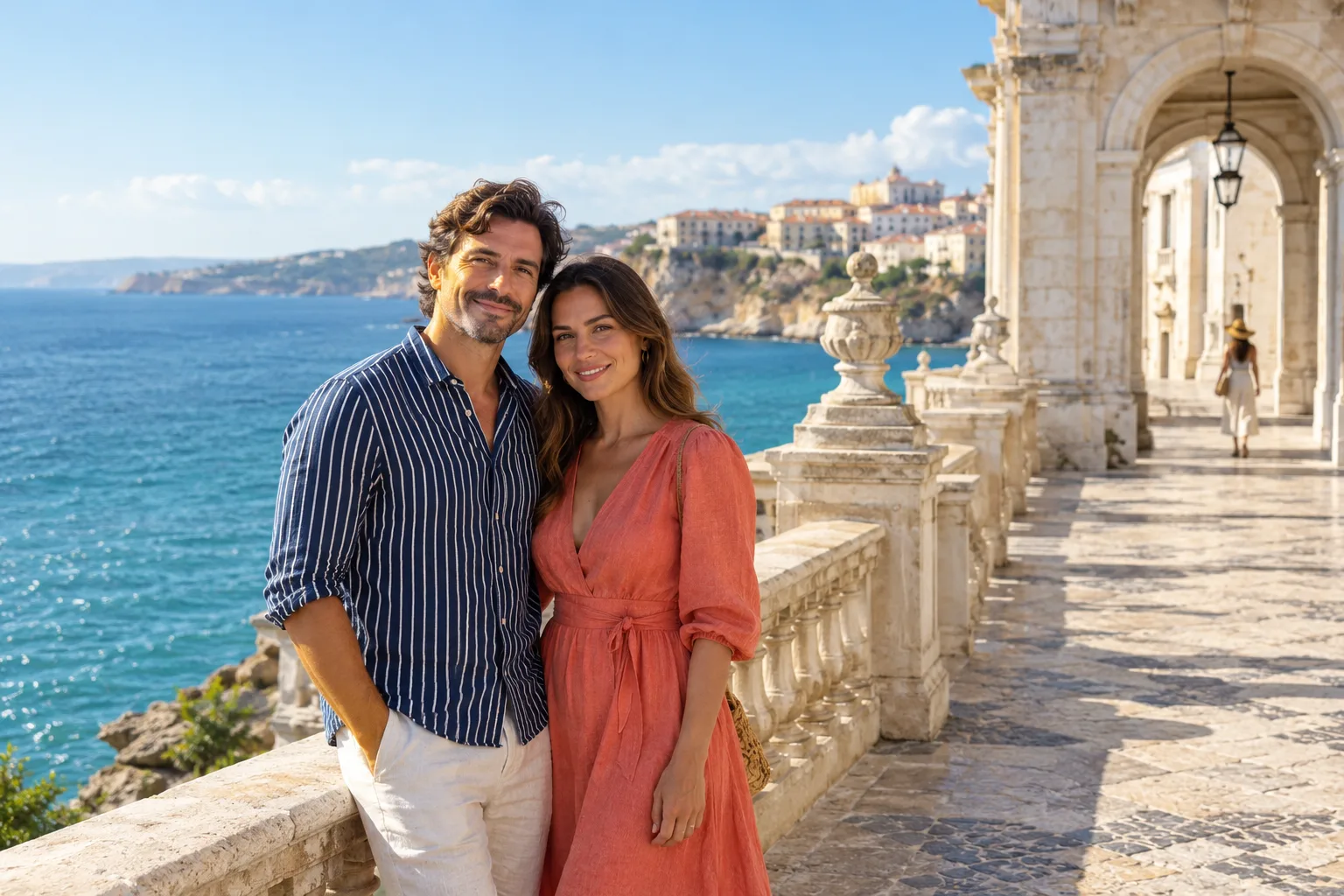
Remove one person from a group photo
A group photo needs a more specific instruction than “remove people.” Identify who should leave the composition, then keep the request focused on that person and the space immediately around them.
Identify the person by position
In description mode, use visible details such as “the person on the far right in a red jacket.” In brush mode, mark that person directly instead of painting across the whole group.
Keep connected details in view
Watch for a hand on a shoulder, overlapping hair or an arm reaching behind someone else. Keep the parts belonging to your remaining subjects outside the painted area.
Review the group as a whole
Compare the remaining people with the original, then check the space between them. The group should still read as a natural composition, with consistent background lines and shadows.
Finish the composition after removing a person
The best final frame may need a little more breathing room or one last cleanup. Choose the next step from what the photo actually needs.
Compare before and after with the full image visible, then take a closer look at the edited region. You can keep the original alongside the downloaded result.
Clear a separate object
If a bag, sign or other object remains in the scene, use Object Remover for a targeted cleanup rather than widening the person selection unnecessarily.
Give your subject more space
If the photo still feels tightly framed, Image Extender can add scene around its edges and help fit a portrait or landscape layout.
Improve the overall photo
For dim light or a flat-looking image, Photo Enhancer offers a separate adjustment after you have settled on the composition.
How to use Remove Person from Photo
Choose the original photo
Keep enough of the surrounding scene for the background to be continued.
Select who should go
Paint the unwanted person, including their outline. Leave the people you want to keep unselected.
Compare and save
Check the background, neighboring faces and clothing before downloading.
Remove Person from Photo FAQ
Plans & credits →Can I try this tool for free?+
Verified sign-up includes 40 welcome credits. Each successful run uses 8 credits. The price appears before you start. Welcome credits are valid for 30 days.
Can I keep one person and remove the others?+
Yes. Use the brush to select only the unwanted figures. A precise selection is especially helpful when people stand close together.
Do I need to crop the image?+
No. This tool fills selected areas while keeping the composition, so you can retain the setting around your subject.
Can it remove a person who overlaps my subject?+
You can try a careful selection. Review the newly filled area closely where figures overlap, because hidden details need to be reconstructed.
Will I lose credits if processing fails?+
No. If a task fails, its credits or free use are returned. A completed result still uses the displayed credits or free allowance, even if you decide to try a different edit.
How long are my images saved?+
Image results created with an active subscription or an unexpired credit-pack purchase stay saved until you delete them. Other image results are available for 3 days. Check the expiry shown with each result and download any images you want to keep.My creations
Continue with the right image tool
Make space for your favorite moment.
Edit your photo