Edit Text in Image
Replace words in photos, signs and posters while keeping the surrounding design.
1 free image daily
Verified account required · then 8 credits per image
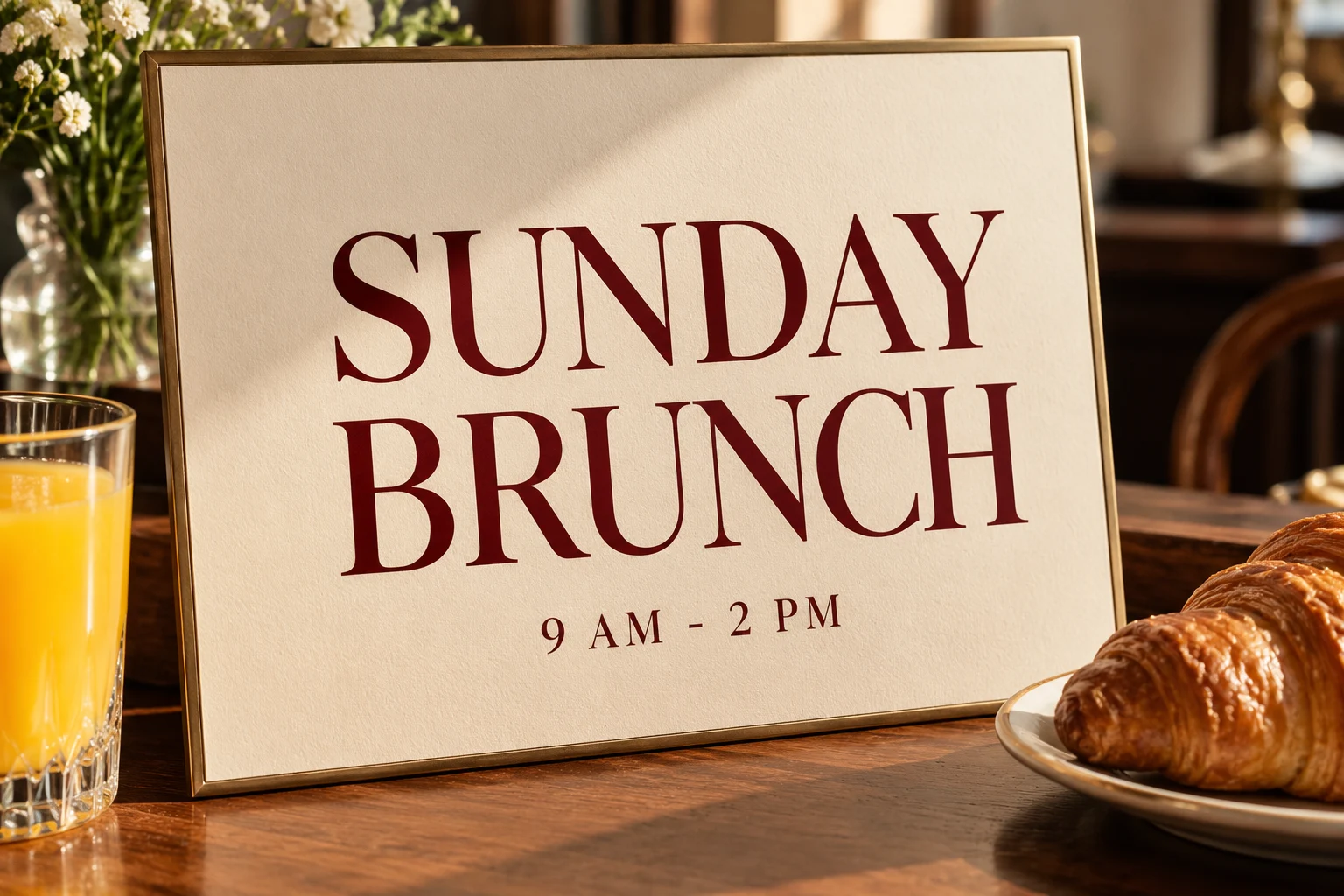
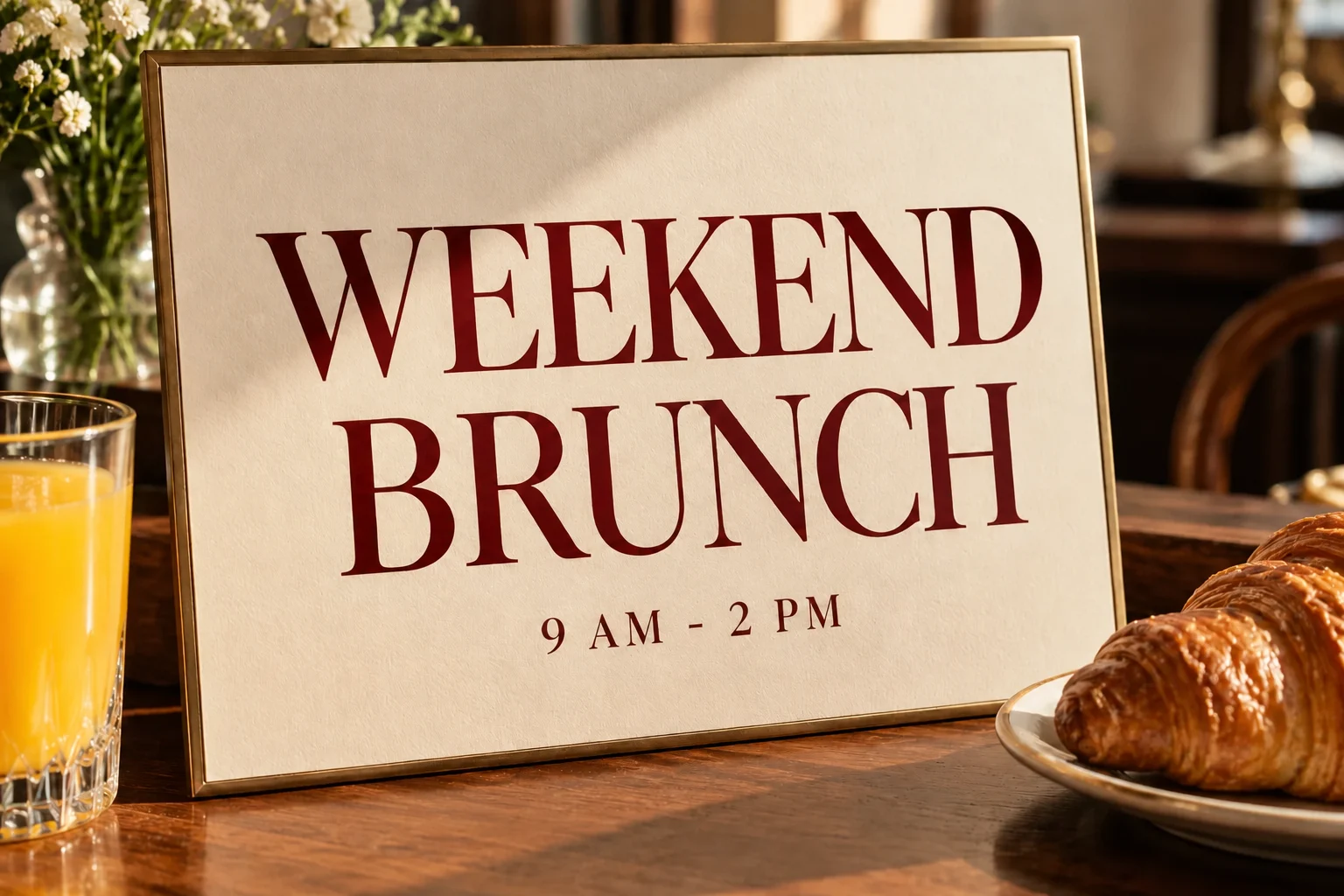
1 free image daily with a verified account · Then 8 credits per image.
Your results are private. Free-account results are available for 3 days.
Edit product labels without rebuilding the design
A new scent or product variant may need only one word changed. Identify the exact label text and its replacement, then retain the surrounding illustration and supporting copy.
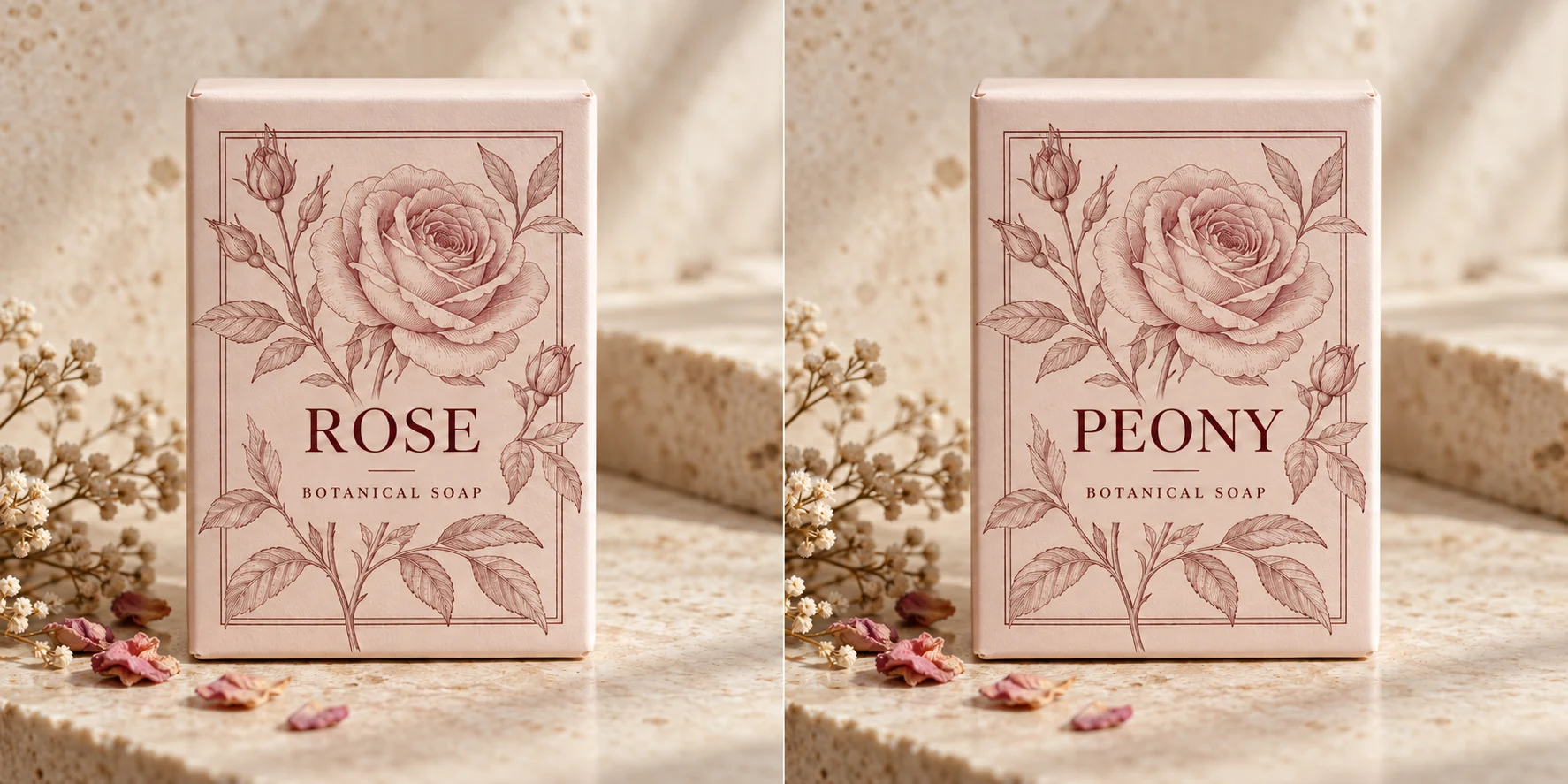
ROSE label
PEONY label
Find this text
ROSE
Replace it with
PEONY
Keep in the frame
The BOTANICAL SOAP line, botanical illustration and box design. Name the exact word so the edit has a clear target.
Refresh a headline
Replace a short campaign phrase while keeping the surrounding composition as the reference.
Correct a small detail
Change an old name, date or word without rebuilding the entire design from scratch.
Try another language
Supply your translated phrase as the replacement. A similar length helps it fit the available space.
Edit words in a picture without the original design file
Text in a flattened image is part of the picture, rather than a separate text box. An AI text editor uses the existing image as a reference to replace a phrase and recreate its surrounding visual treatment.
Give the edit a specific target
Enter the words currently visible and the replacement you want. A short, exact phrase gives the edit a clearer target than a broad instruction to redesign the image. Keep the original nearby to check spelling, alignment and the parts you wanted to preserve.
Update text in menus, promotions and everyday designs
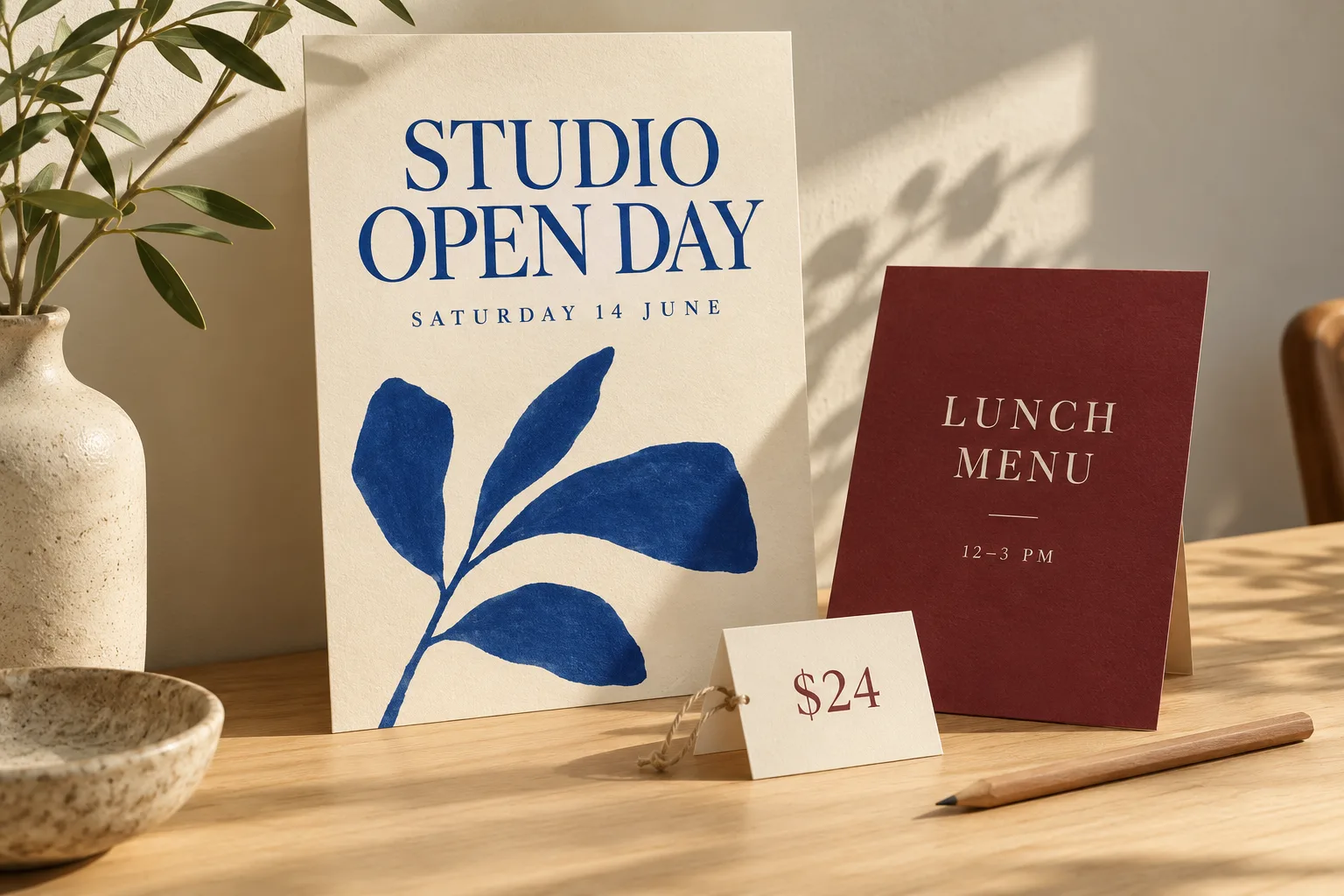
Plan the words before the edit
Example replacements
Check the replacement before you run the edit. Similar-length wording is easier to place in a layout that was built for the original phrase.
Check dates, prices and short numbers
A single digit can change the meaning of a sign. Enter the complete visible phrase, including its currency symbol or date format, then inspect the replacement at full size before sharing the image.
Keep capitalization and punctuation intentional
Write the replacement exactly as you want it to read, including accents and punctuation. When supplying a translation, choose a concise phrase that works in the original headline space.
Make replacement text fit the original image
Match the available space
A short label and a long sentence need different amounts of room. Keep the replacement close to the original length when the text sits in a narrow sign, a badge or a fixed-width headline. Shorten the wording if the design starts to feel crowded.
Start with readable lettering
Upload a clear version of the picture, with the full phrase visible. Reflections, extreme perspective and tiny lettering make the target harder to distinguish. Compare the new words and the surrounding design at a comfortable viewing size.
Replace the text or clear the space?
Keep a message, change the words
Use Edit Text in Image when the sign, caption or label should still contain lettering. The original picture guides the style, while your replacement defines what it should say.
Remove lettering from the picture
If you want an empty sign or a photo without a caption, use Remove Text from Image. It lets you clear all text or select a particular area before reviewing the background underneath.
How to use Edit Text in Image
Upload the sign or design
Choose an image with clearly readable text.
Enter old and new words
Copy the exact original phrase, then type its replacement. Each field allows up to 120 characters.
Check the new lettering
Review spelling, alignment and nearby text, then download your edited image.
Edit Text in Image FAQ
Plans & credits →What is included for free?+
After email verification, you get 1 free image a day. The same daily allowance applies to subscribers. Extra images cost 8 credits each.
Can I change several phrases at once?+
The panel takes one original phrase and one replacement per run. Keep the instruction focused on the wording you want changed.
Will it use the exact original font?+
The editor uses the existing lettering as a visual reference. Check the final font, spacing and spelling before publishing.
Can I replace text in another language?+
Yes. Enter the words shown in the image and your replacement, including a translation. Review spelling and layout in the result, especially when the replacement is much longer.
When do my free uses reset?+
Each tool’s daily allowance resets at 00:00 UTC. Using another tool does not reduce this allowance. Unused daily uses do not carry over.
Will I lose credits if processing fails?+
No. If a task fails, its credits or free use are returned. A completed result still uses the displayed credits or free allowance, even if you decide to try a different edit.
How long are my images saved?+
Image results created with an active subscription or an unexpired credit-pack purchase stay saved until you delete them. Other image results are available for 3 days. Check the expiry shown with each result and download any images you want to keep.My creations
Continue with the right image tool
Make your message current.
Replace text in your image