AI Product Photo Generator
Create a styled 2K product photo with a preset scene or your own description.
25 credits per image
40 welcome credits after verified sign-up
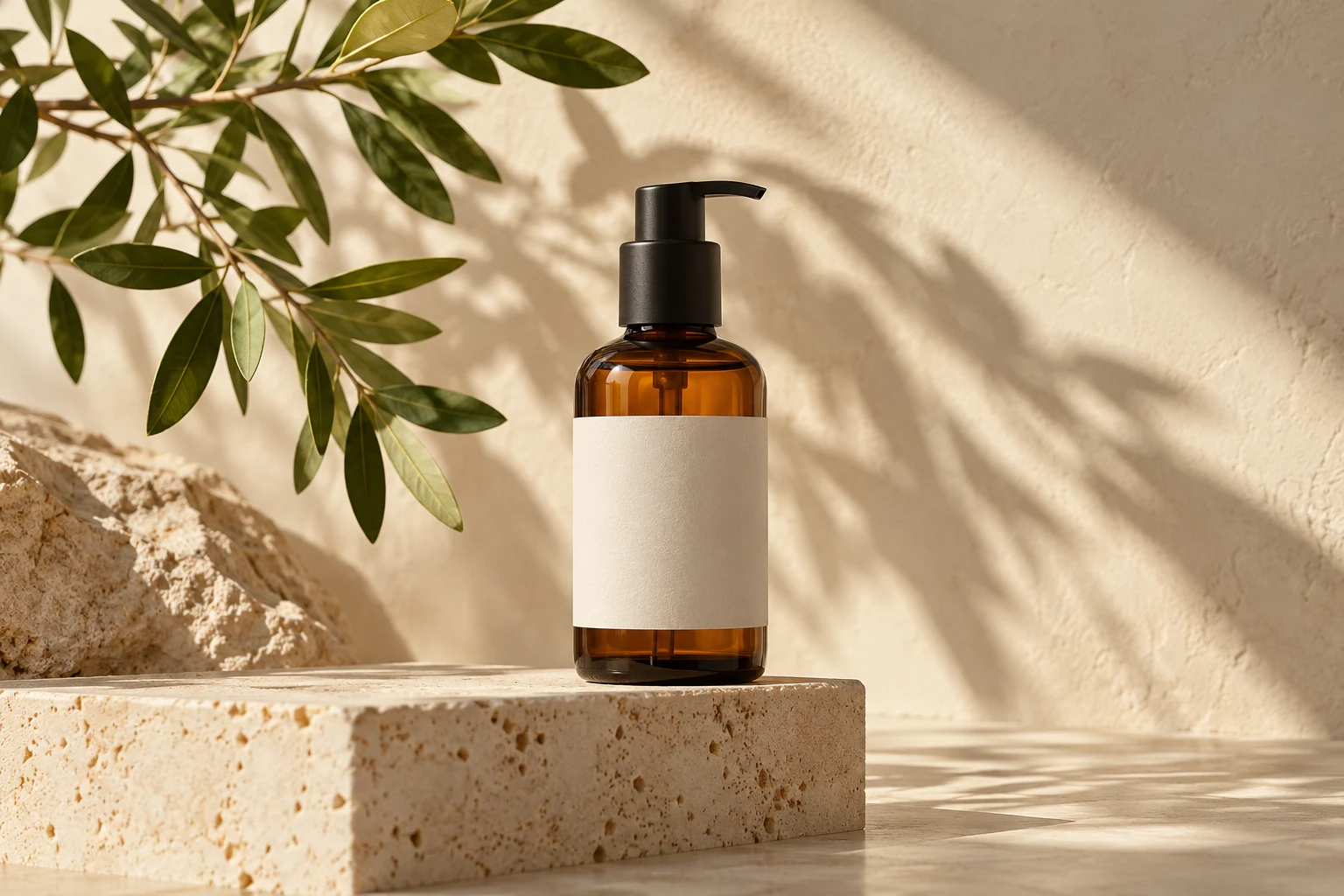
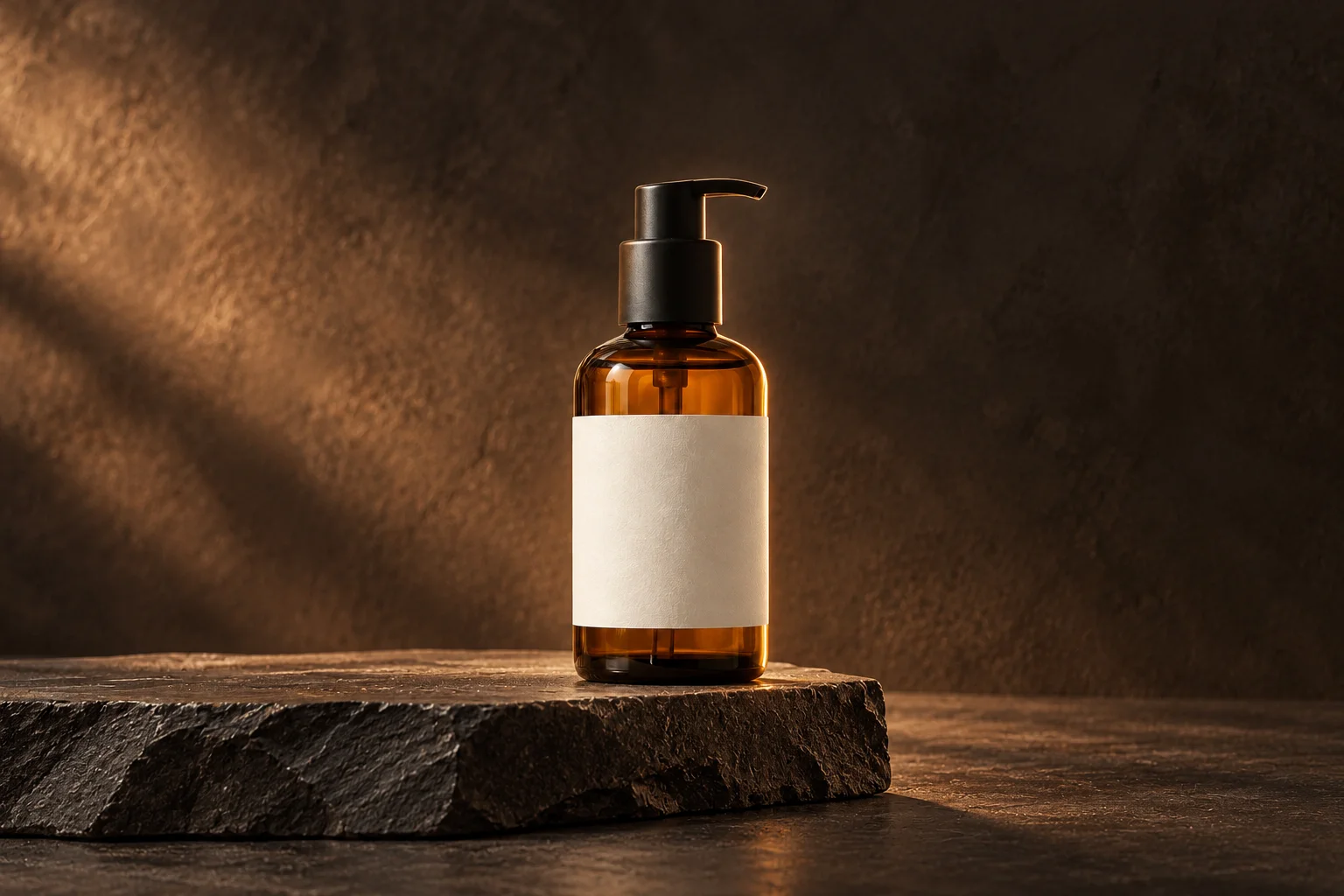
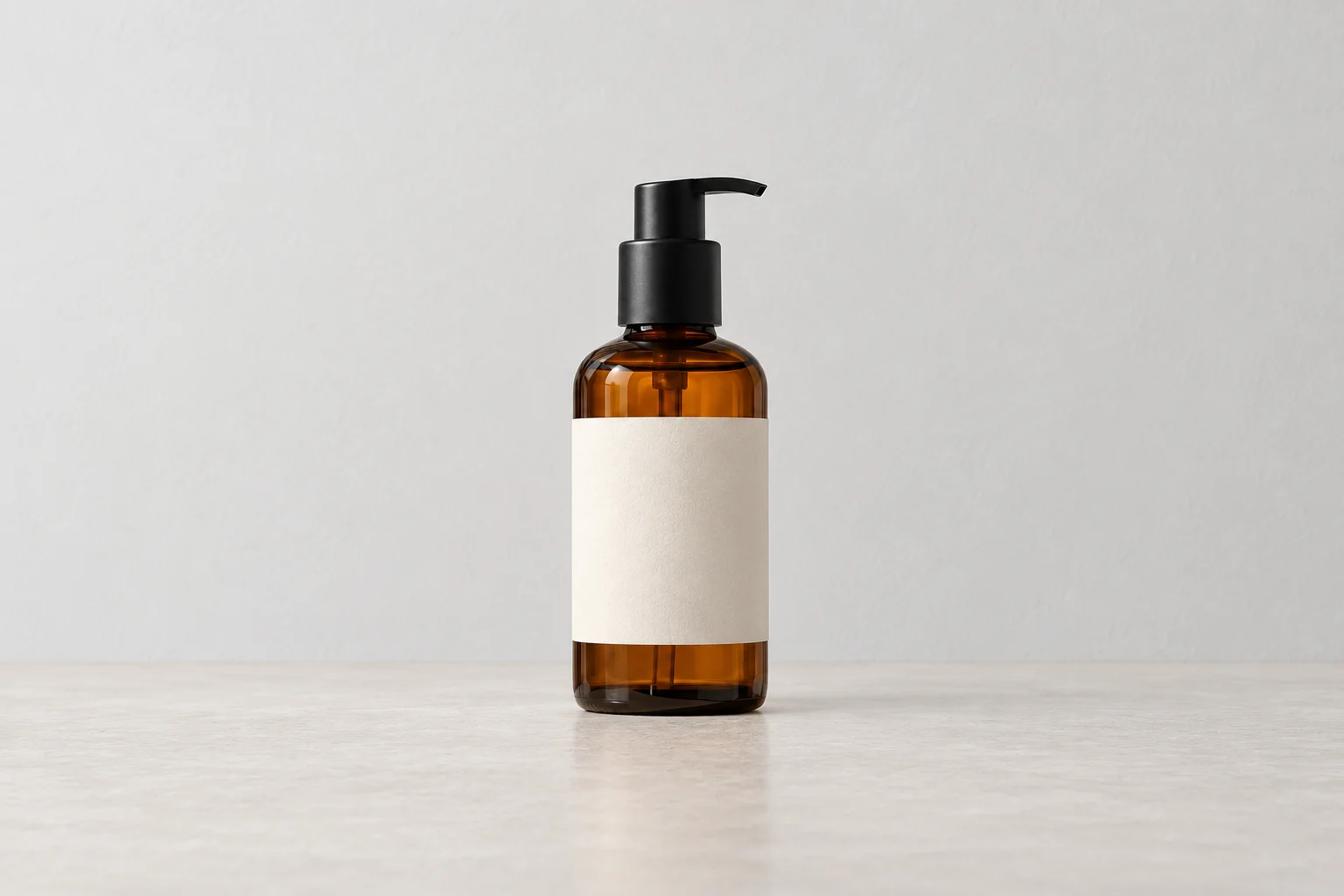
Your results are private. Free-account results are available for 3 days.
Turn a plain bag photo into a lifestyle product image
A product's setting can tell people where it belongs. Keep the weekender bag recognizable, then use a lakeside bench, natural light and surrounding space to suggest a weekend away.
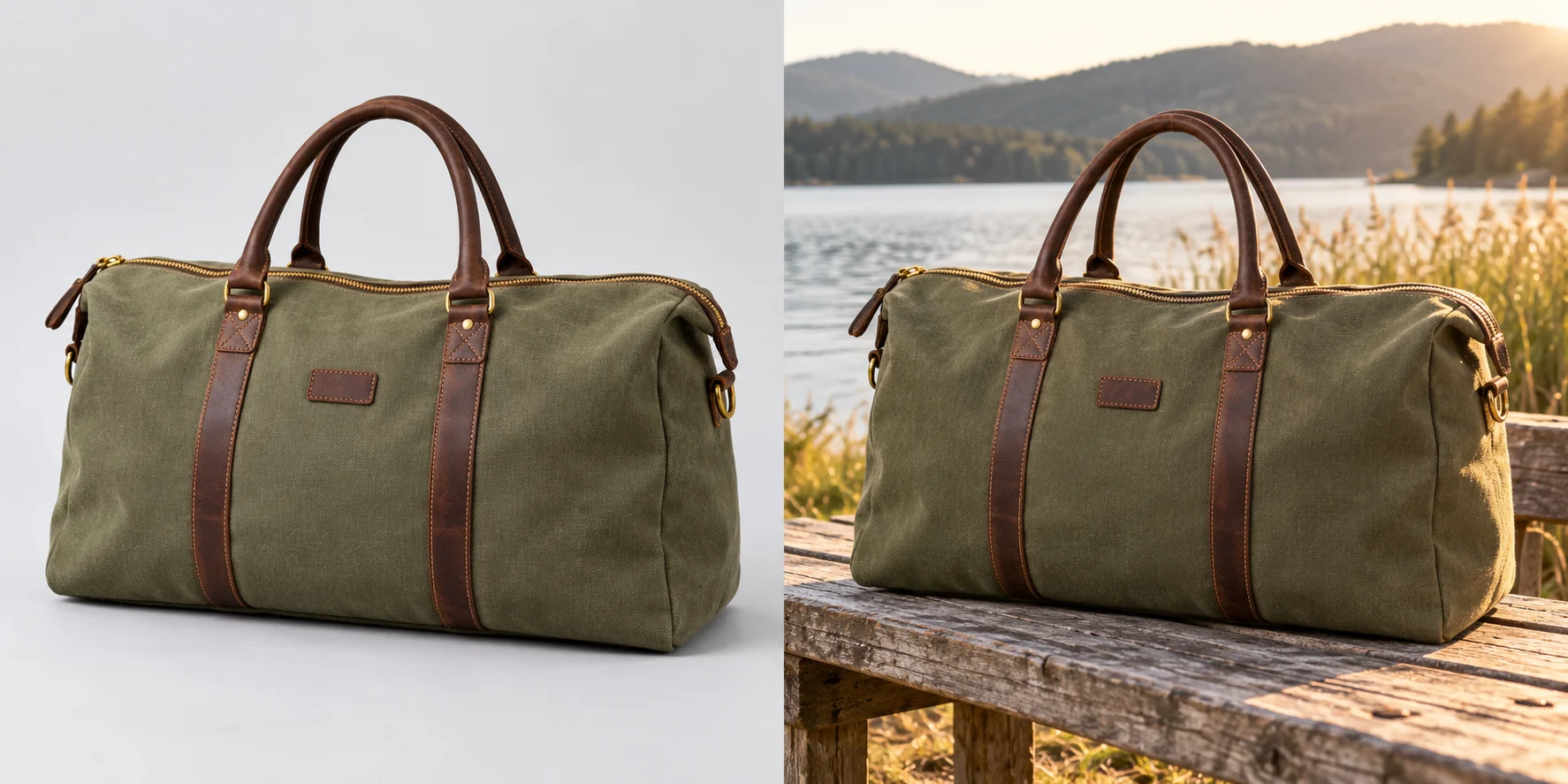
Plain product photo
Lifestyle setting
A clean studio
Keep attention on the silhouette with a restrained surface and simple lighting.
A lived-in setting
Use a kitchen or outdoor scene to suggest how the product belongs in everyday life.
Your own art direction
Describe a specific surface, light and mood in Custom, then choose a frame for the intended placement.
AI product photography starts with your product image
An AI product photo generator uses your uploaded item as a reference for a newly styled scene. Choose a preset or describe a setting, then create a direction for your shop, social content or a campaign concept.
Let the setting explain the product
A clean studio can emphasize the silhouette; a kitchen or outdoor setting can suggest how the item fits into everyday life. Start with the use of the final image, then choose the surface, light and surroundings that support it.
Product photos for your shop, social posts and campaigns
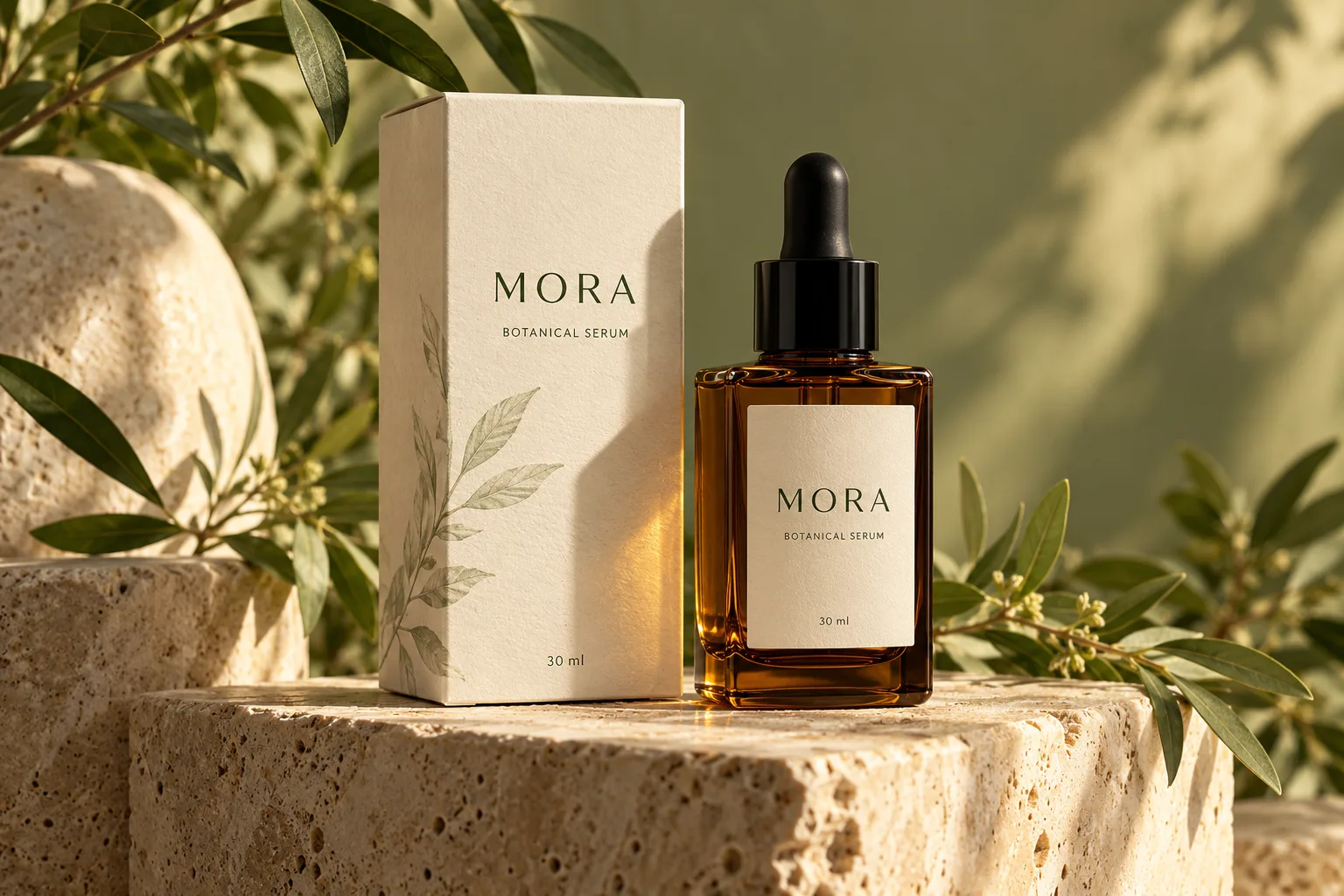
A focused product detail image
Keep props minimal and make the shape and material easy to read. A quiet surface and soft light can help the product remain the first thing a shopper notices in a small image.
A lifestyle scene for social content
Put the item in a setting connected to its use. Describe the mood, time of day and a small number of supporting details so the scene gives context without competing with the product.
Room for a campaign layout
Choose a wider or taller frame for the design you plan to make. Leave a quiet area where you can add campaign copy in your design workflow, or use Image Extender when an existing composition needs more space.
Keep the product details at the center of your review
Upload the whole item clearly
Include the full shape, edges and packaging in the source image. Use an angle that shows what matters to your customer. A visible label and even lighting give you a clearer reference for checking the result.
Compare before you publish
Check the outline, color, lid, handle and any readable packaging text against the original. Look at how the item meets the surface and whether the scene feels proportionate. Choose a result that represents the actual product you sell.
A lifestyle scene, a white background or a transparent cutout?
Use a scene to tell a product story
Product Photo is the place to explore surfaces, light and atmosphere around your item. It is useful when the setting contributes to the idea you want the finished image to communicate.
Choose a simpler background for a listing
For a plain catalog image, use White Background. If you need to place the item into your own layout, download a transparent PNG with Background Remover.
How to use AI Product Photo
Upload a product photo
Show the whole item clearly, including the shape and packaging details that matter.
Set the scene and frame
Choose a preset or write a Custom scene. Pick a square, portrait or landscape ratio.
Review the product details
Check label text, shape and proportions, then download the 2K image.
AI Product Photo FAQ
Plans & credits →Can I try this tool for free?+
Verified sign-up includes 40 welcome credits. Each successful run uses 25 credits. The price appears before you start. Welcome credits are valid for 30 days.
Do I need to remove the background first?+
No. You can start with a clear product photo. Make sure the item is easy to distinguish from its surroundings.
Can I describe my own scene?+
Yes. Select Custom and describe the surface, background, light and mood you have in mind.
Can I get a plain white image instead?+
Use White Background for a simple listing image. AI Product Photo creates styled settings around your product.Open White Background
How can I keep my product’s appearance consistent?+
Use a clear photo with the full product visible, then describe the scene rather than asking to redesign the item. Check logos, label text, color and proportions before using the result in a listing.
Will I lose credits if processing fails?+
No. If a task fails, its credits or free use are returned. A completed result still uses the displayed credits or free allowance, even if you decide to try a different edit.
How long are my images saved?+
Image results created with an active subscription or an unexpired credit-pack purchase stay saved until you delete them. Other image results are available for 3 days. Check the expiry shown with each result and download any images you want to keep.My creations
Continue with the right image tool
Set the scene for your next launch.
Create a product photo