Add a White Background to Your Photo
Give product photos a clean white or light gray background, with an optional soft shadow.
2 free images daily
Verified account required · then 2 credits per image
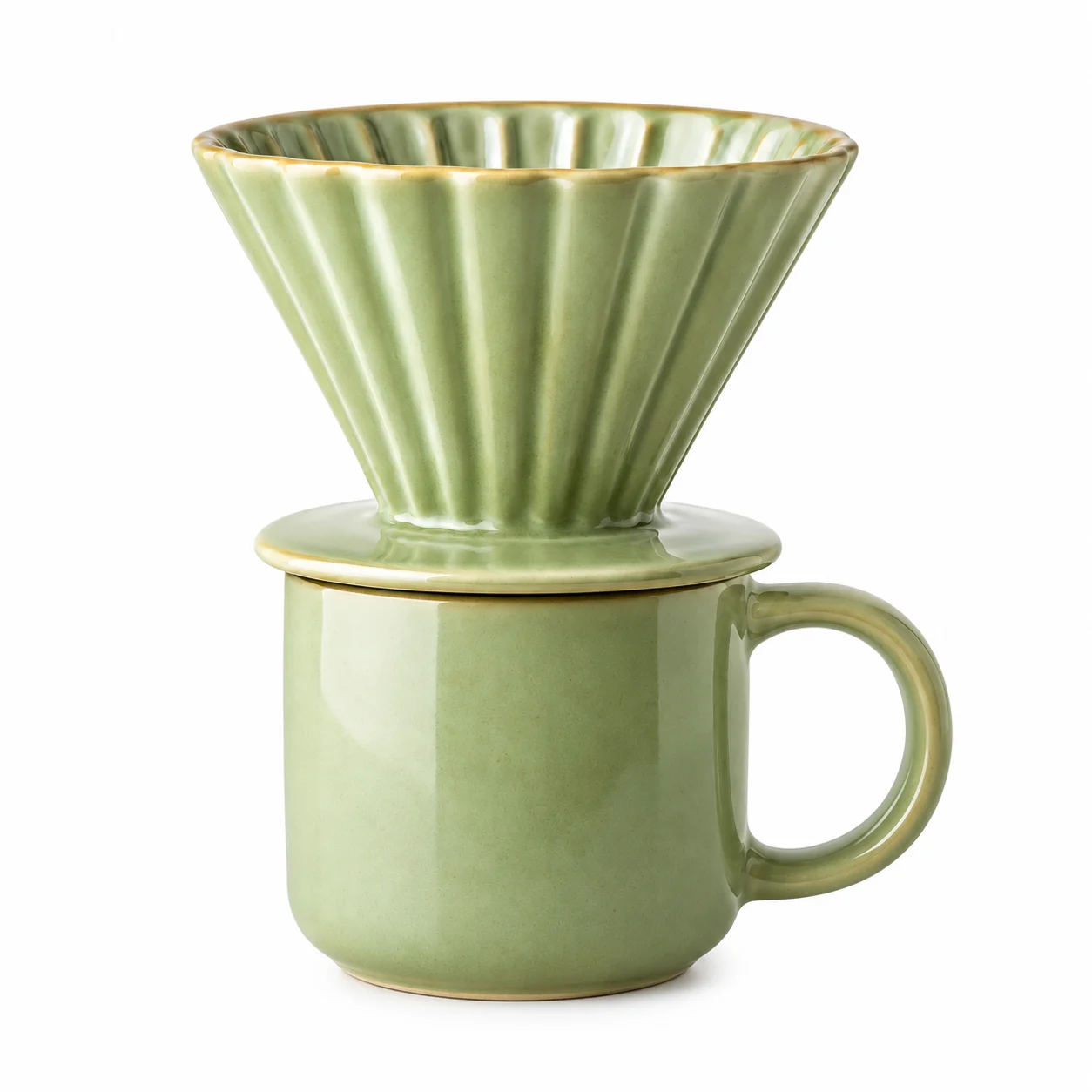 Pure white
2 free images daily with a verified account · Then 2 credits per image.
Files are stored temporarily. Download your results before they expire.
File privacy & retention
Anyone with a direct file link can open it. Keep those links private. Read our privacy policy.
Create white background photos for footwear listings
Bring a workshop photograph into a consistent catalog. A clean white setting helps the viewer see the boot's silhouette, stitching and material without the surrounding tools and surfaces.
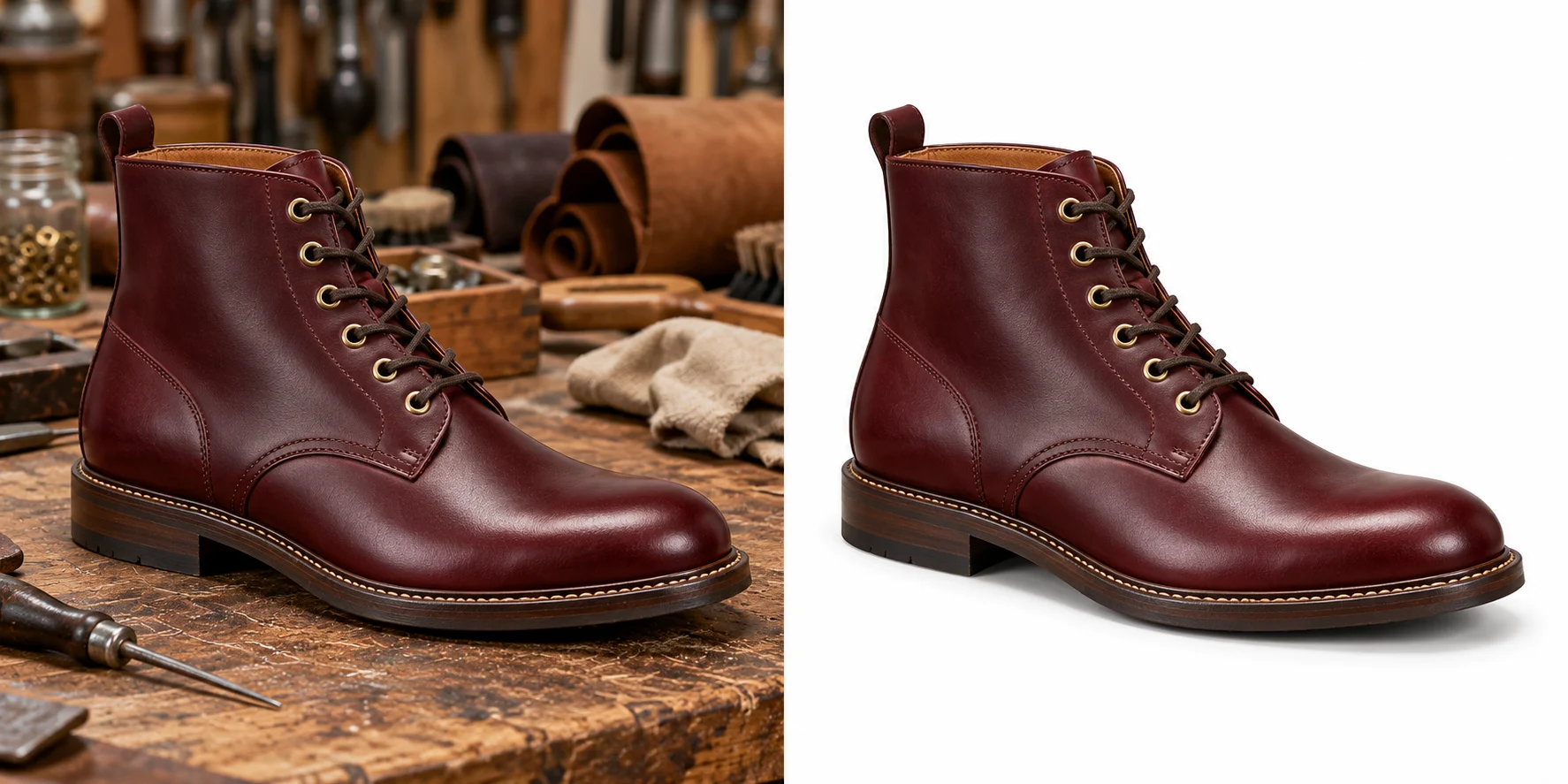
Workshop photo
White catalog background
A consistent backdrop helps a collection feel considered. Use the same finish and similar framing across your product images.
Make your product photos feel like one collection
Adding a white background replaces the surroundings of a product with a simple, solid backdrop. It gives separate photos a common visual setting, even when the originals were taken in different rooms or on different days.
Work through your products one image at a time. Keep the same finish, similar spacing and a consistent camera angle so the collection reads as a shop, rather than a set of unrelated snapshots.
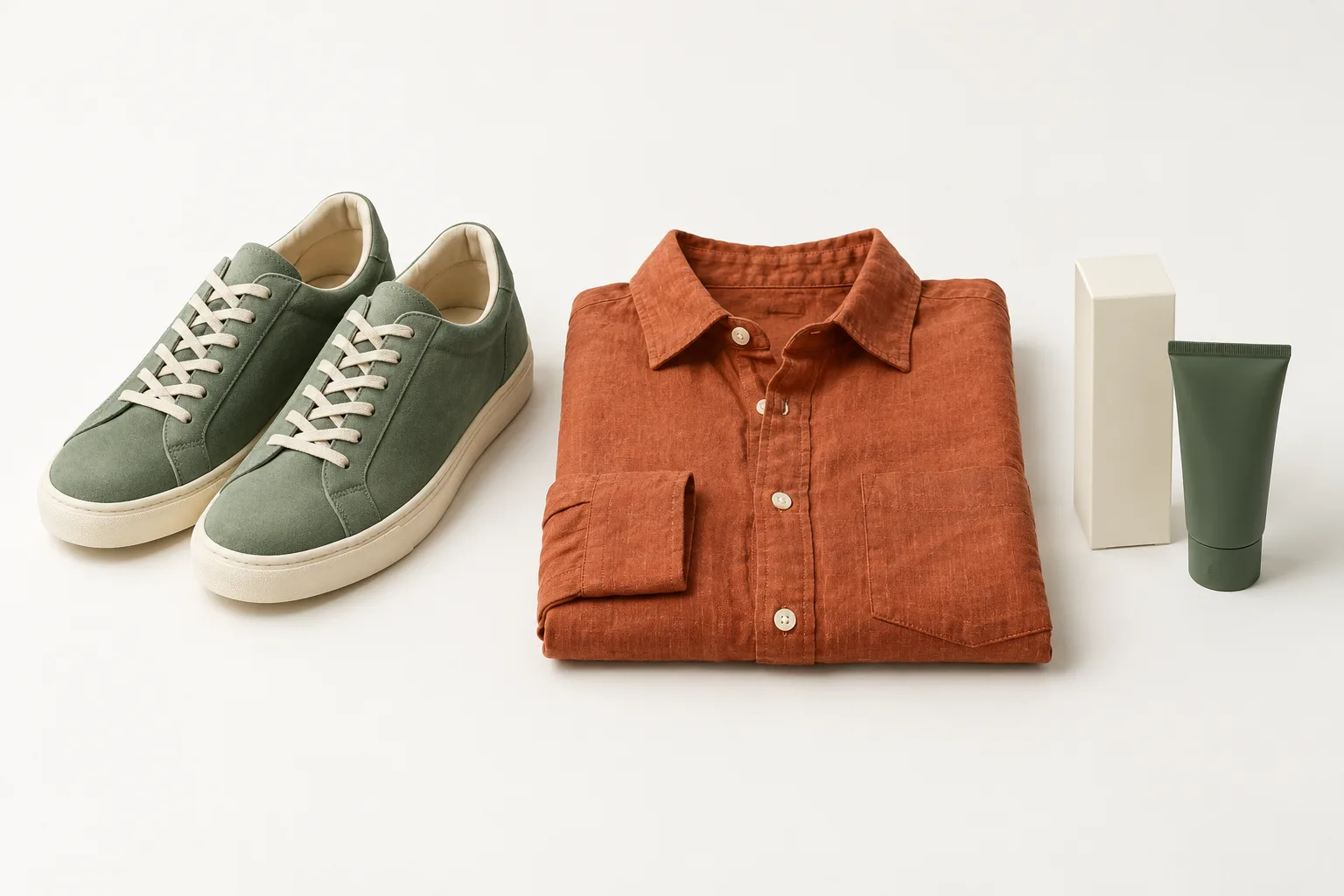
Individual product listings
A plain background helps the silhouette, material and color become the first things a shopper notices. Keep the whole product visible, including handles, sleeves and straps.
Shop collections and category pages
Use a similar amount of space around each item so thumbnails sit comfortably together. Match the product scale by eye after preparing each photo.
Catalogs and product presentations
A clean product image is easy to place beside specifications, pricing or a color name. Save a version with room around the item for different page layouts.
Frame a white-background photo around the product
The backdrop is only part of a strong listing image. A few choices in the source photo help the finished item look intentional at thumbnail size and when a shopper opens it for a closer look.
Show the complete shape
Photograph the entire item before uploading. Leave a small margin around thin straps, shoe tips and packaging corners so the finished composition has room to breathe.
Keep the viewing angle consistent
Use front-facing photos for a comparable set, or repeat a three-quarter angle across a collection. A white background unifies the setting; the source photo still determines the viewpoint.
Check the image at listing size
Inspect the outline, then zoom out to the size people will see in your shop. If the original is too small for the placement, use Image Upscaler to prepare a larger version.
Choose a background for the image you need
Give each product image a clear purpose. A listing photo, reusable cutout and lifestyle image do different work in a storefront.
A solid white product image
Use this tool for a clean, neutral product presentation. Choose the same preset across related photos, then check the current image requirements of the marketplace where you plan to publish.
A transparent product cutout
Choose Background Remover when your designer needs a PNG to layer over a colored promotion or another layout. Transparent and white backgrounds are different outputs.
A product in a real-world setting
Choose AI Product Photo for a styled surface, room or outdoor scene. It is a useful companion image when customers also need to imagine the item in use.
How to use White Background
Upload your product
Use a clear photo with the whole item visible, including handles and edges.
Choose the finish
Select a plain background or one of the available shop presets in the panel.
Download for your listing
Review the outline and composition, then save the finished product image.
White Background FAQ
Plans & credits →What is included for free?+
After email verification, you get 2 free images a day. The same daily allowance applies to subscribers. Extra images cost 2 credits each.
Is this the same as a transparent background?+
No. This tool creates an image with a visible background. Use Background Remover when you need a transparent PNG for compositing.
Can I use the image on Amazon or Shopify?+
The panel includes Amazon 1:1 and Shopify presets. Check the final image against your marketplace, product category and listing requirements before publishing.
Can I add a realistic scene instead?+
Use AI Product Photo to place your item in a studio, kitchen, outdoor or custom setting. White Background is designed for a plain backdrop.AI Product Photo
When do my free uses reset?+
Each tool’s daily allowance resets at 00:00 UTC. Using another tool does not reduce this allowance. Unused daily uses do not carry over.
Will I lose credits if processing fails?+
No. If a task fails, its credits or free use are returned. A completed result still uses the displayed credits or free allowance, even if you decide to try a different edit.
How long are my images saved?+
Image results created with an active subscription or an unexpired credit-pack purchase stay saved until you delete them. Other image results are available for 3 days. Check the expiry shown with each result and download any images you want to keep.My creations
Continue with the right image tool
Make the product the focus.
Create a white background